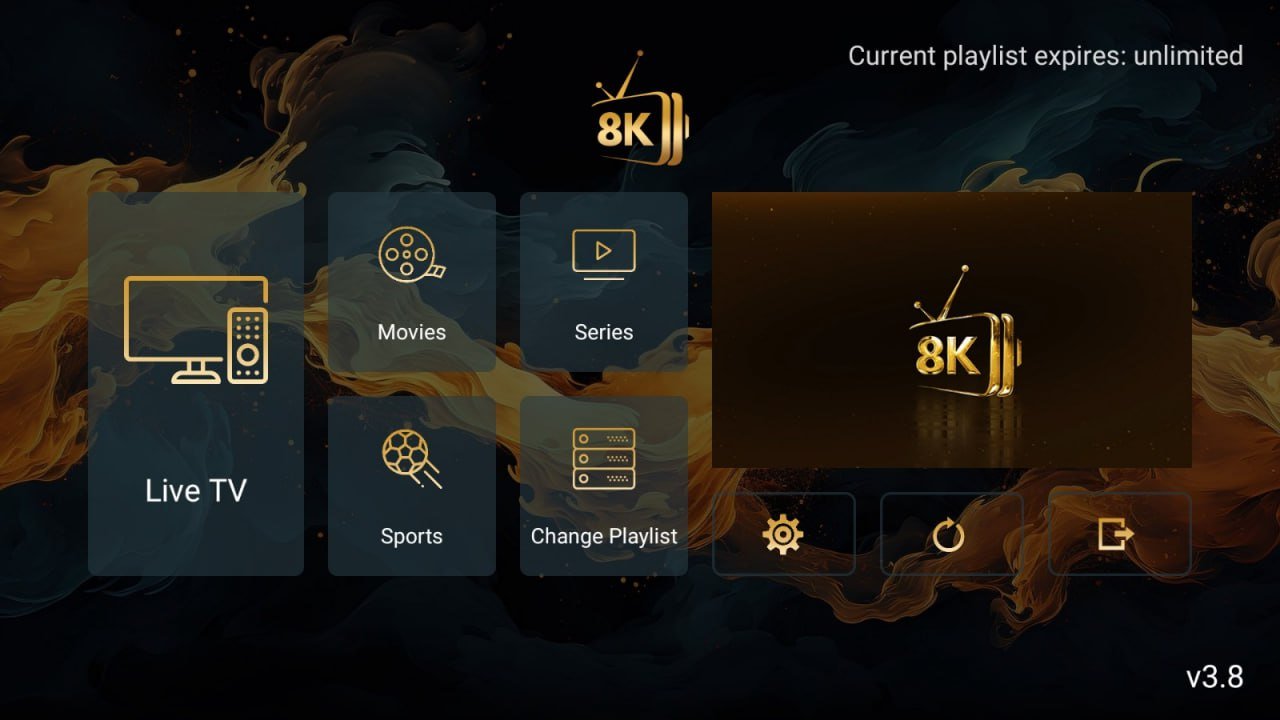

If you’re looking to enjoy premium IPTV content in Ultra HD or even 8K, this is your ultimate guide! In this tutorial, you’ll discover how to install the 8K Player VIP App for free on Amazon Firestick, Fire TV, Android TV, and Google TV devices.
You’ll also learn how to activate the app with a playlist, where to buy a verified IPTV subscription, and how to get help from our support team at TVPrime8K.com — the official IPTV provider for 8K Player VIP.
💡 Note: The 8K Player VIP app does not come preloaded with channels. You’ll need a valid subscription to access content. You can request a free 24-hour trial or buy a premium plan directly at TVPrime8K.com.
✅ Devices Compatible with 8K Player VIP App
- Amazon Fire TV Stick 4K / Max / Lite
- Fire TV Cube
- Android TV Boxes (MECOOL, T95, NVIDIA Shield)
- Chromecast with Google TV
- Smart TVs running Android OS
📥 Step-by-Step Installation Instructions
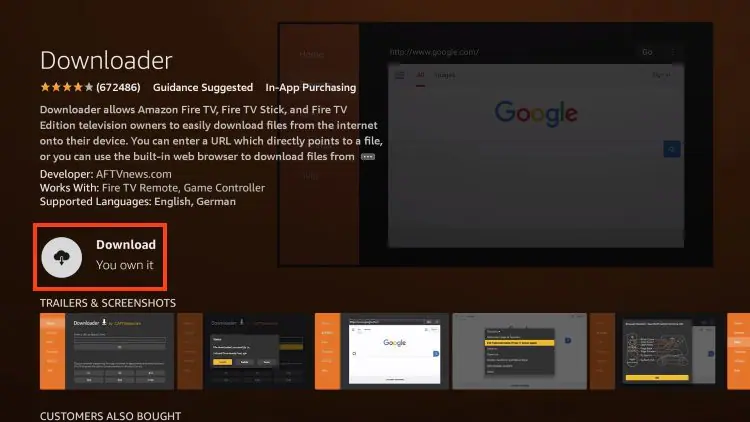
Step 1: Install the Downloader App
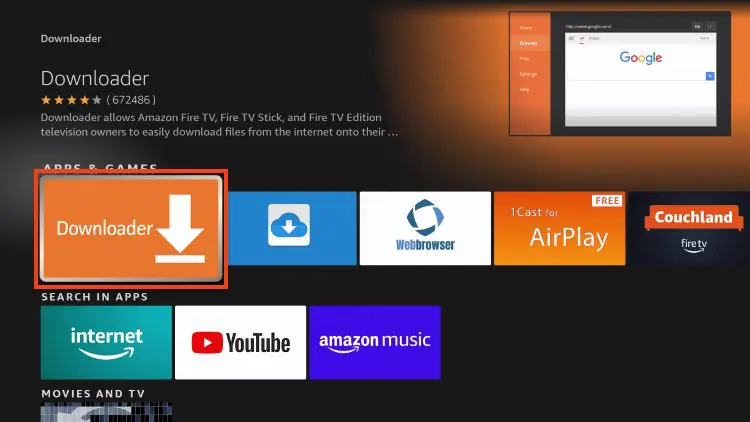
- From your device’s home screen, click on the Search icon.
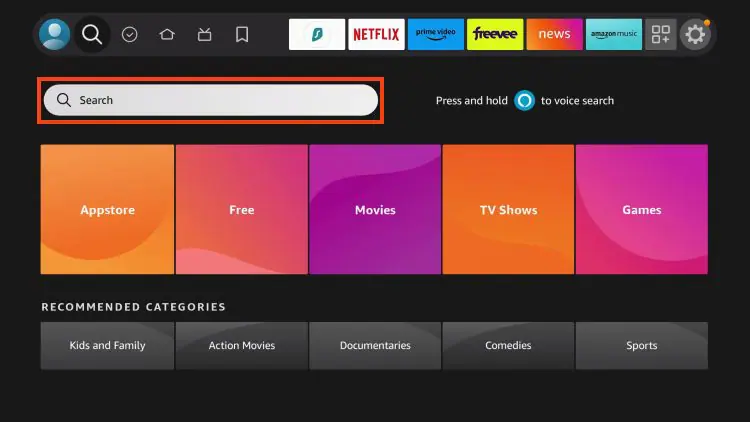
- Type and select Downloader.
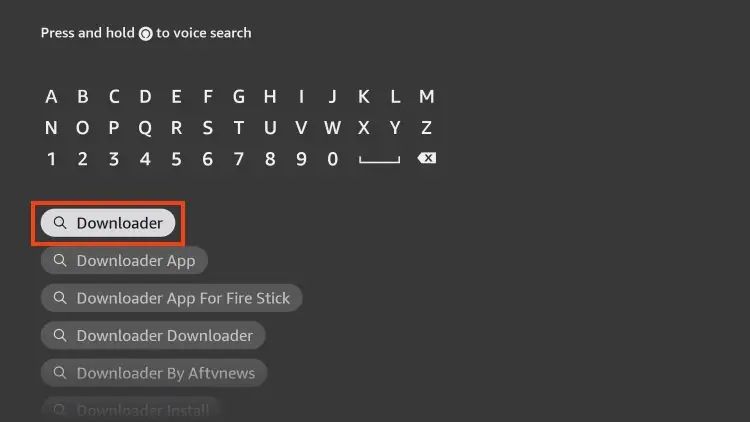
- Select the orange Downloader app from the list.
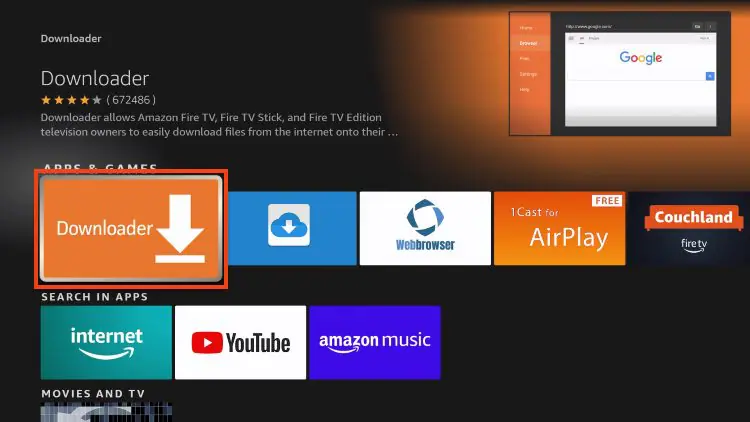
- Click Download or Get to install.
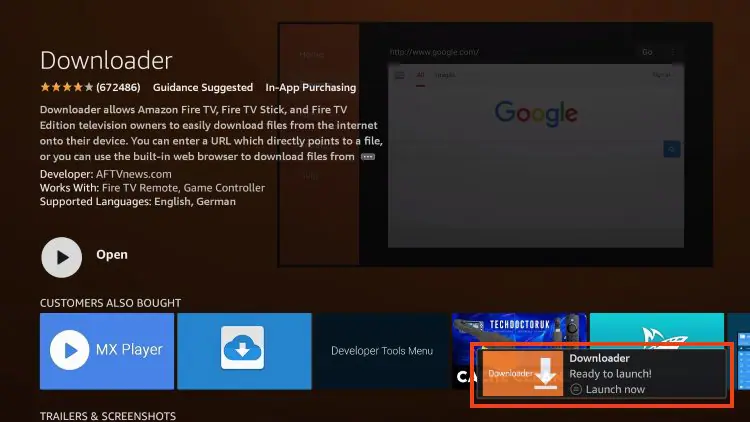
- Once installed, you’ll see the message:
✅ “Downloader is Ready to Launch!”
Step 2: Enable Apps from Unknown Sources
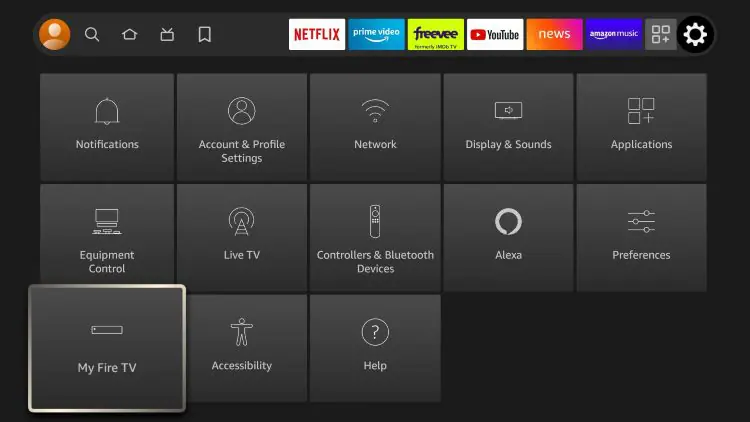
1. Return to the Home screen to hover over Settings and click My Fire TV.
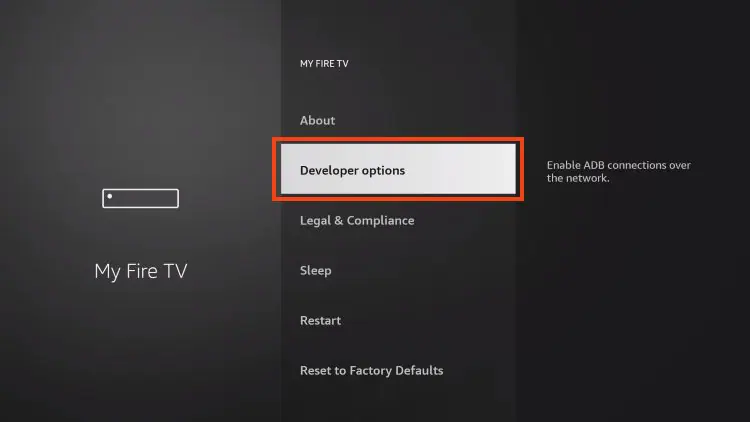
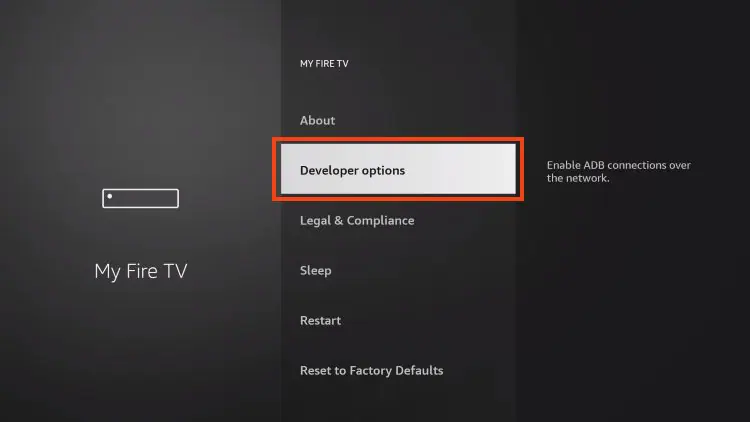
2. Choose Developer Options.
IMPORTANT: Please see the notes below if you do not see the developer options on your screen.
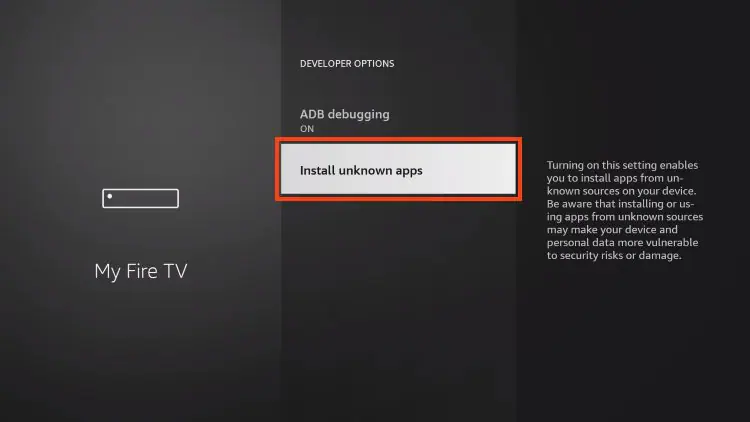
3. Click Install unknown apps.
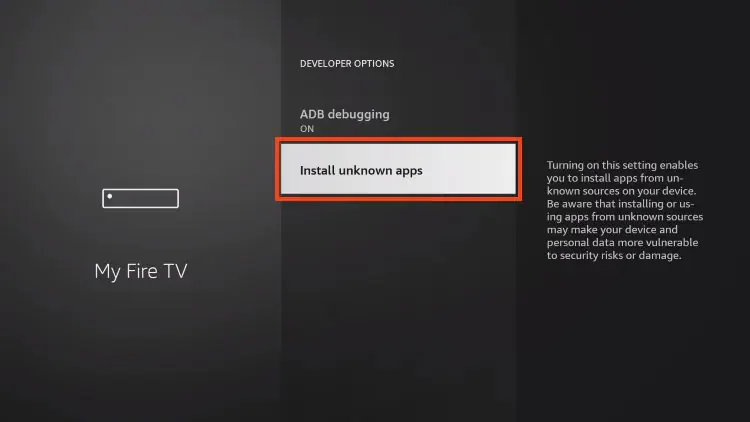
4. Find the Downloader app and click on it.
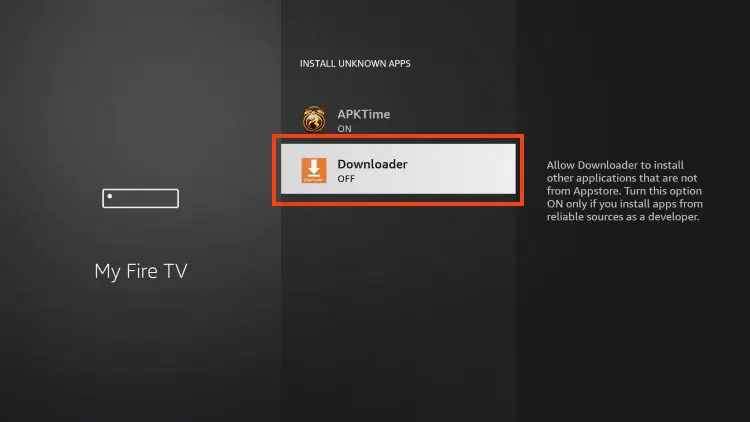
5. This will enable unknown sources for the Downloader app and enable sideloading on your device.
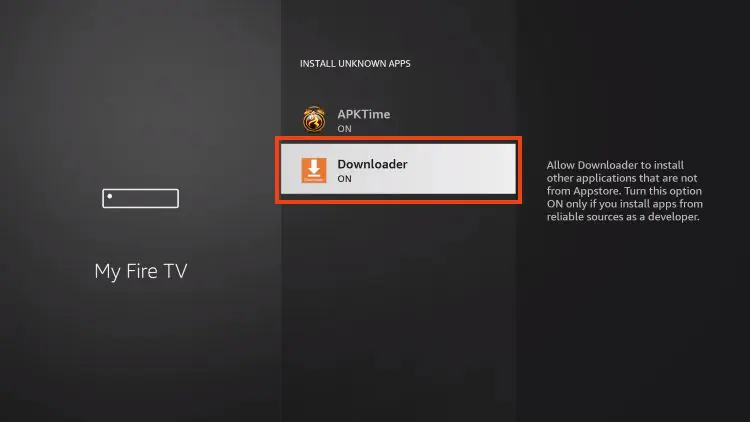
If Developer Options were not available in step 2 follow the next steps. otherwise go to step 3
If you are unable to locate Developer options in Settings, follow the instructions below to enable using the Downloader app.
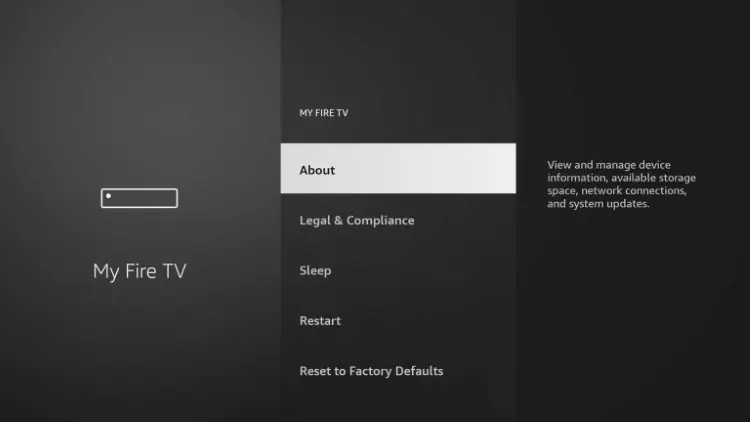
1. Mouse over the Settings icon and click My Fire TV
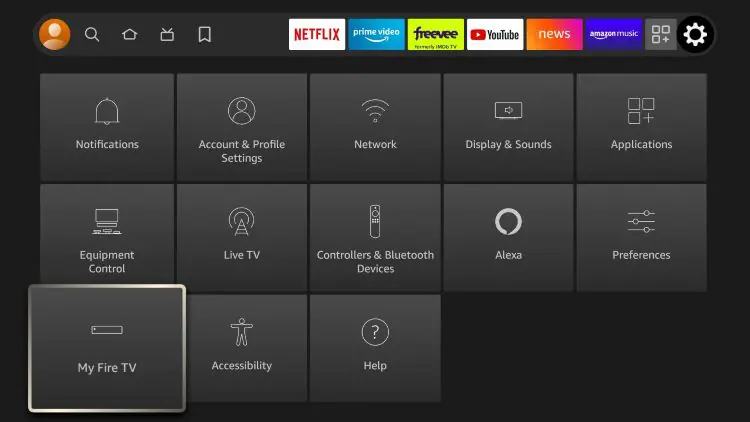
2. Click About .
Note: Note that the developer options are missing.
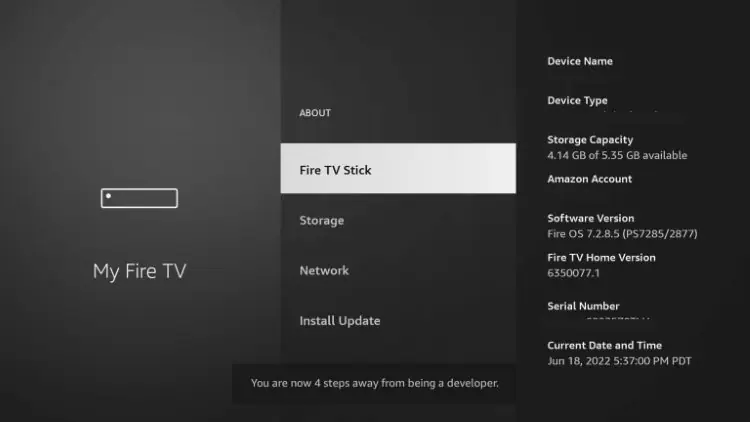
3. Hover over Fire TV Stick and click the OK button on your remote 7 times to become a developer.
4. Click the Back button on your remote and you will notice that Developer Options are now displayed in My Fire TV.
5. Click Install unknown apps.
6. Find the Downloader app and click on it.
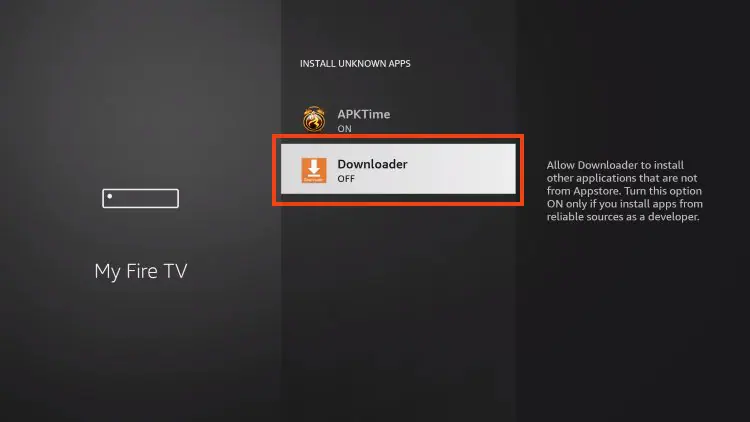
7. This will enable unknown sources for the Downloader app and enable sideloading on your device.
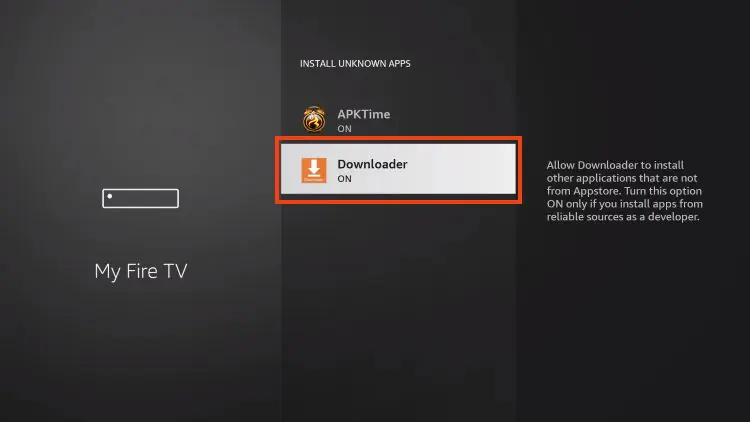
Now that I have properly prepared my Firestick, it’s time to move on to the next step.
Step 3: Download & Install the 8K Player VIP App
- 1. Launch the Downloader app.
2. Hover over the URL bar and click the select button on your remote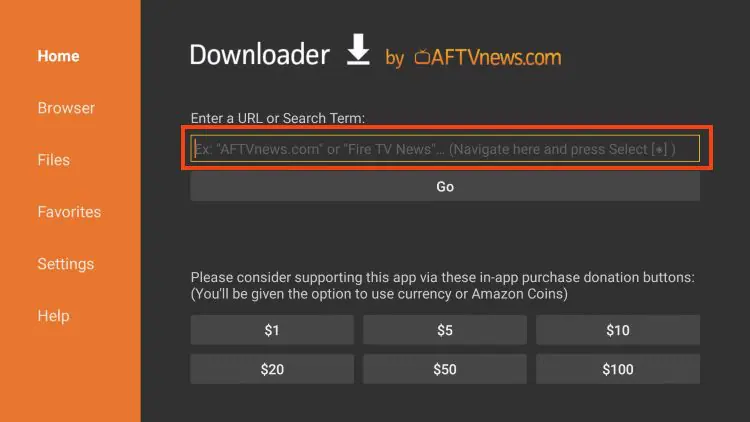
3. Type download code
439873
and click Go.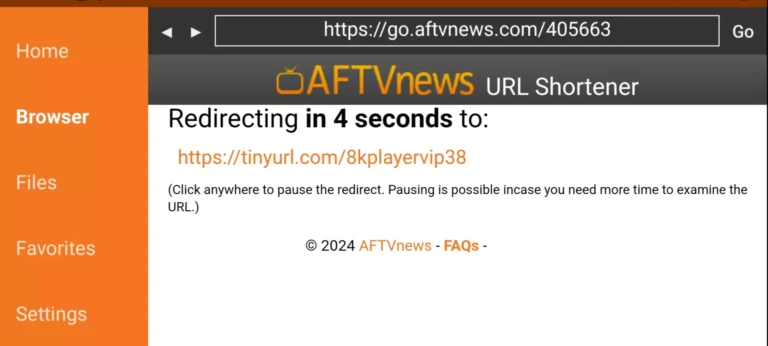
4. You will then encounter a redirect page. wait 4 to 6 seconds if the download does not start click on the link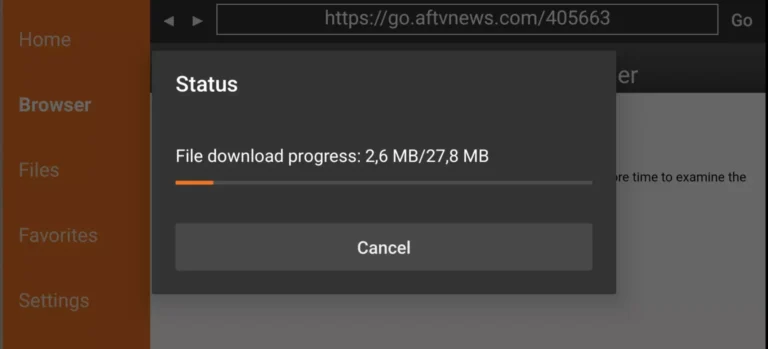
5. Wait for the app to download.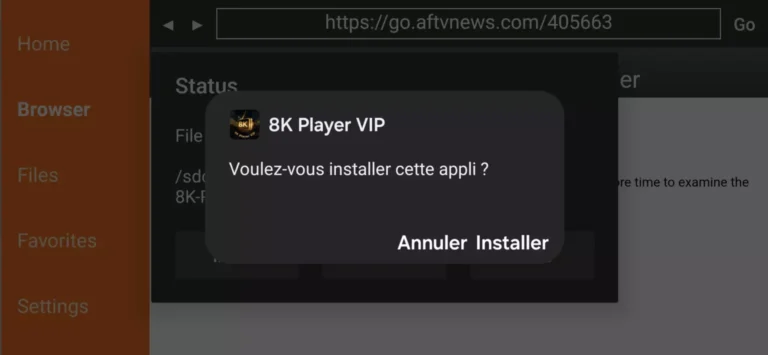
6. Click Install.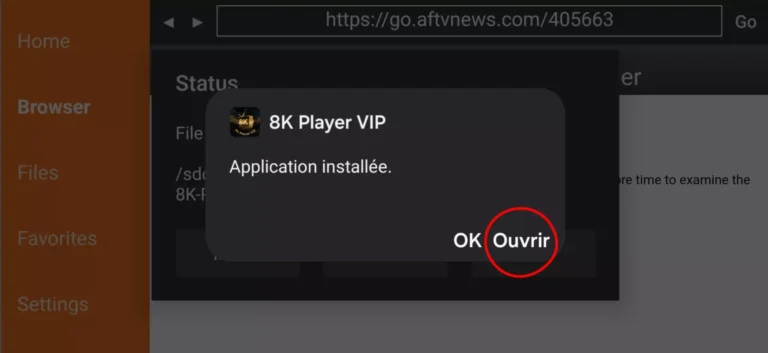
The application is installed
🧩 Step 4: Configure the 8K Player VIP App
Now let’s set up the app using your playlist credentials.
- Launch the 8K Player VIP App.
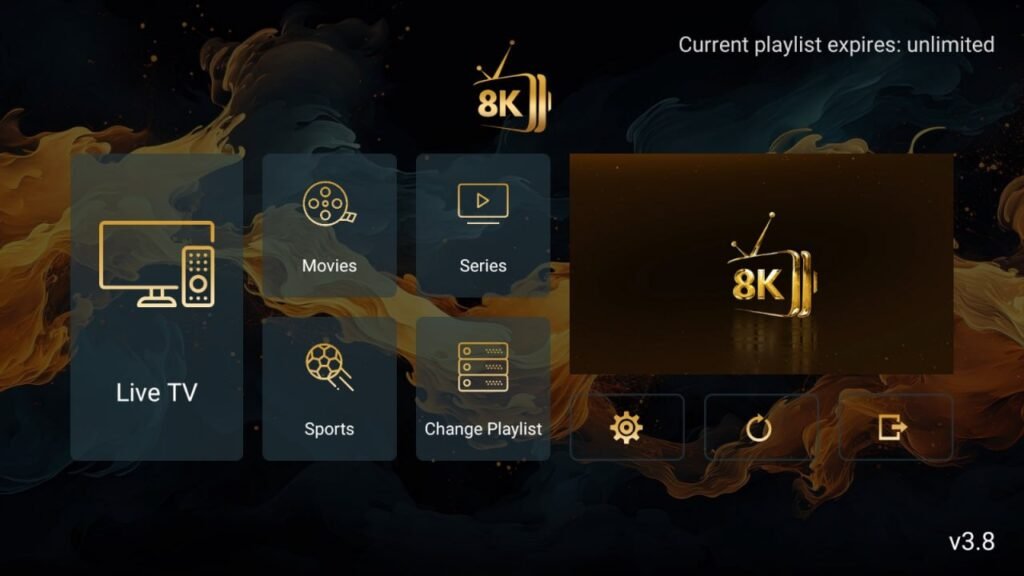
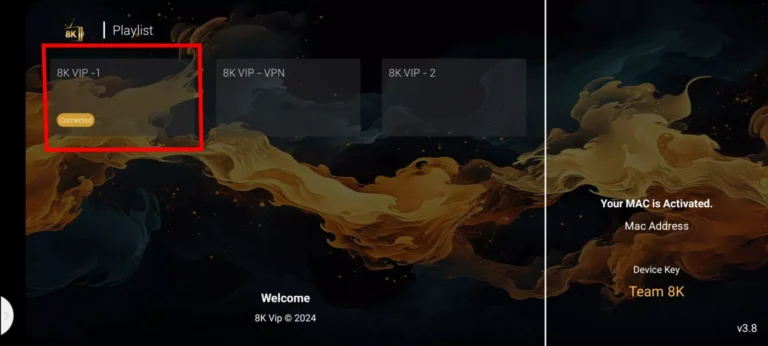
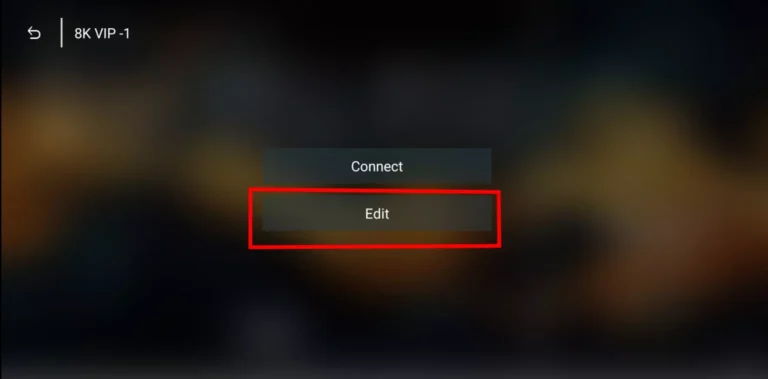
- Click on “8K VIP – VPN”, Tap Edit
- Enter your details:
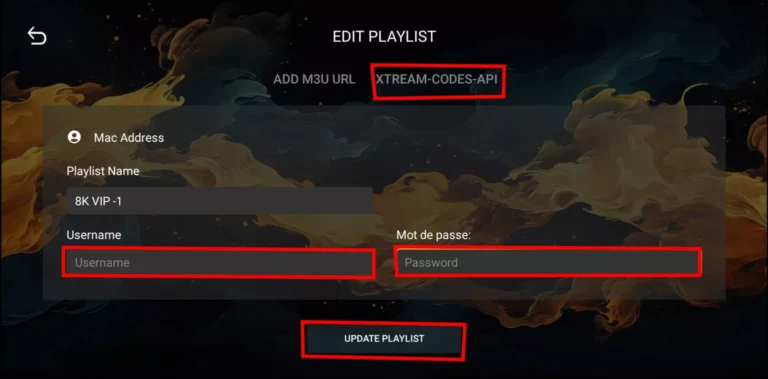
- Username
- Password
- Click Update Playlist to load your IPTV channels.
🎁 Don’t have a subscription yet?
Get a FREE 24-hour trial or activate a full premium plan at
👉 TVPrime8K.com.
🛒 Buy a Subscription from TVPrime8K.com
Here’s what you get when you subscribe via TVPrime8K.com:
- ✅ Full 8K/VIP Compatibility
- ✅ Supports Firestick, Android TV, and more
- ✅ Instant Activation
- ✅ 24/7 Customer Support
- ✅ Affordable Monthly & Yearly Plans
📲 Need Help?
- Chat with us directly on WhatsApp: +44 7888 892117
- Or email: support@tvprime8k.com
🔗 Internal Resource: View all available subscription plans
🌐 External Link: Learn how to speed up your Firestick for better performance from TechRadar.
🙋 Frequently Asked Questions (FAQs)
1. Is 8K Player VIP App free?
Yes, the app itself is free. However, you’ll need a subscription to stream live channels, which you can get from TVPrime8K.com.
2. How can I get a trial?
You can request a 24-hour free test directly from our homepage: TVPrime8K.com.
3. Is this compatible with all Fire TV versions?
Yes! It works on all generations of Firestick and Fire TV, including 4K Max and Fire TV Cube.
4. I installed the app, but no channels are showing. Why?
You need to input a valid playlist from a verified IPTV provider like TVPrime8K.com.
5. Can I use this on multiple devices?
Yes, depending on your plan. Check our pricing page for multi-device options.
6. Where can I get help if I’m stuck?
Message us on WhatsApp at +44 7888 892117 or email us at support@tvprime8k.com for quick support.
🏁 Final Thoughts
Installing and configuring the 8K Player VIP App on your Firestick or Android TV is easy when you follow the steps in this guide. Pairing it with a trusted IPTV provider like TVPrime8K.com ensures high-quality, buffer-free streaming, plus 24/7 support if you need it.
Don’t wait — enjoy unlimited content in crystal-clear 8K today.
🛠 Need more help or want to buy a plan now?
🔗 Visit TVPrime8K.com
📲 Chat on WhatsApp: +44 7888 892117
📧 Email: support@tvprime8k.com
