
Looking to watch live TV, movies, and series on your iPhone or iPad? In this step-by-step guide, you’ll learn how to install and set up IPTV Smarters (Smarters Player Lite) on iOS devices using either the Xtream Codes API or an M3U Playlist URL.
⚠️ Note: The IPTV Smarters app does not provide any content by itself. You need an active IPTV subscription with a provider like TVPrime8K.com to load channels and stream content.
✅ What You’ll Need
- iPhone or iPad (iOS 12+)
- Internet connection (Wi-Fi or data)
- IPTV subscription (Username, Password, Server URL or M3U)
- Smarters Player Lite app from the App Store
🔽 Step 1: Download IPTV Smarters App on iOS
- Go to the App Store.
- Search for Smarters Player Lite.
- Or click this direct link:
👉 Smarters Player Lite on App Store - Tap Install and wait for the app to download.
Once installed, you’re ready to configure it with your IPTV credentials.
🔧 Step 2: Open the App and Add Your IPTV Account
Once the app is open, you’ll have two options to add channels:
🛠️ Option 1: Set Up IPTV Smarters via Xtream Codes API (Recommended)
This is the most efficient setup method and enables features like:
- Built-in EPG (no manual setup)
- Catchup support
- Automatic categorization of channels
➤ Step 1: Add User
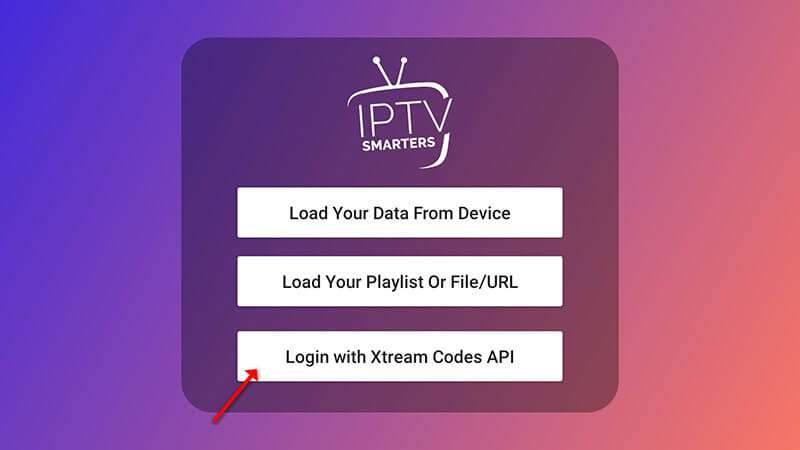
- Tap Add User.
- Select Login with Xtream Codes API.
➤ Step 2: Enter Your Details
- In the first field, enter any profile name (e.g., “TVPrime8K”).
- Enter your Username, Password, and Server URL provided by your IPTV provider via WhatsApp or email.
🔐 Need an IPTV plan or test? Get one at TVPrime8K.com
📲 WhatsApp Support: +44 7888 892117
➤ Step 3: Add User & Load Content
- Click ADD USER.
- Wait a few seconds for the app to process and load all channels and content.
➤ Step 4: Start Watching
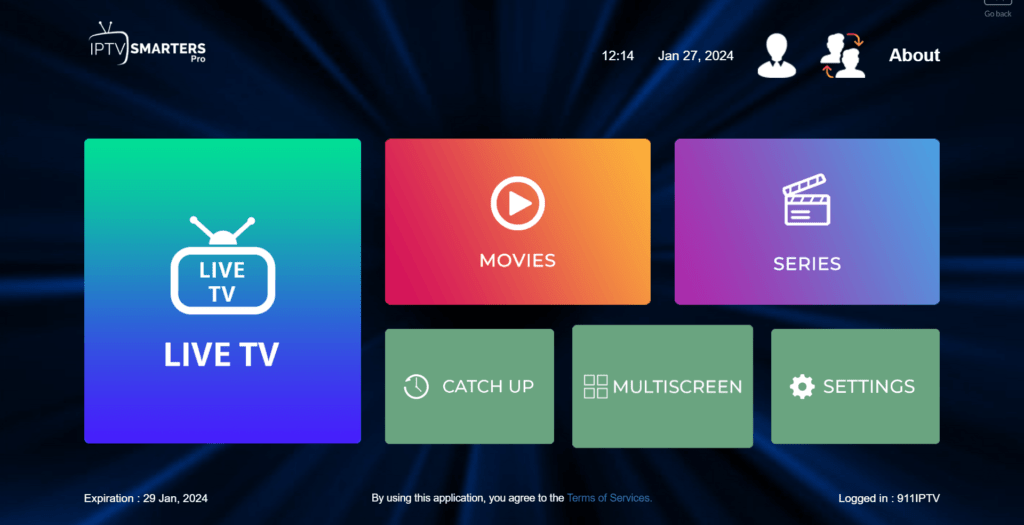
- Click on Live TV.
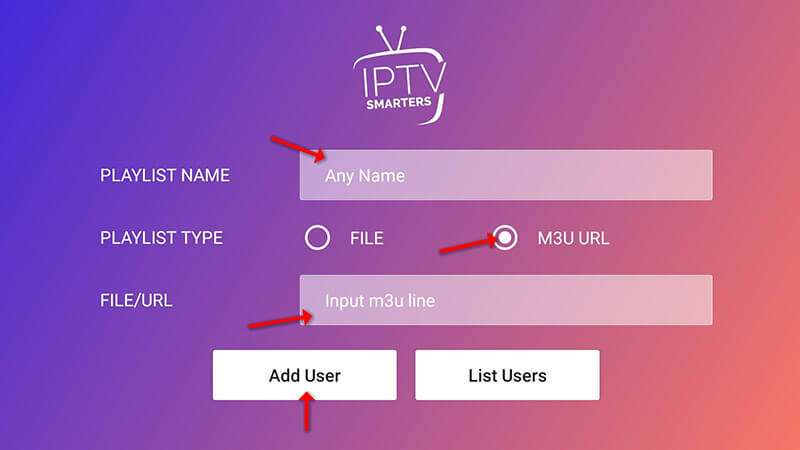
🛠️ Option 2: Set Up IPTV Smarters via Playlist (M3U URL)
If you don’t have Xtream Codes, use an M3U URL.
➤ Step 1: Add User
- Open the app.
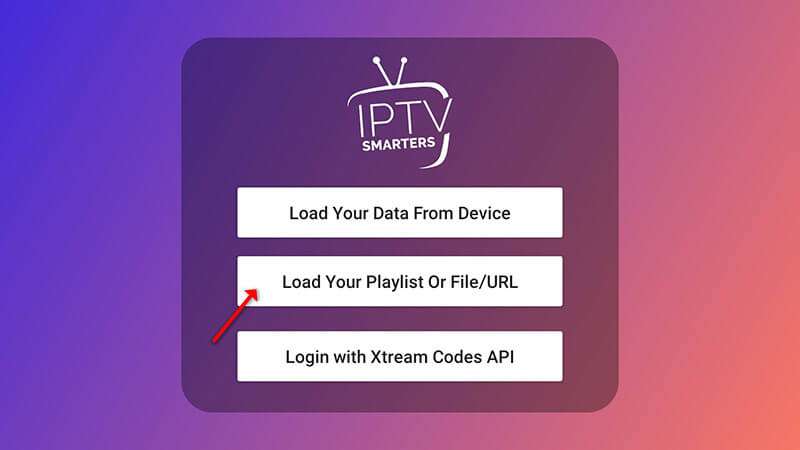
- Tap Add User > Login with Playlist.
➤ Step 2: Enter Playlist Details
- Enter a name for the profile (e.g., “IPTV Playlist”).
- Select M3U URL.
- Paste the M3U URL provided by your IPTV provider.
➤ Step 3: Start Streaming
- Click Live TV, choose a category, and select your desired channel.
📌 Tips for the Best Experience
- Use a stable Wi-Fi connection for smoother playback.
- Enable notifications to get updates from the app.
- If you experience buffering, close background apps or restart your device.
🔗 Useful Resources
- ✅ Official IPTV Smarters App on iOS
- 📘 What is Xtream Codes API? – Explained by IPTVWire
- 📺 Looking for a premium IPTV provider? Get your trial or subscription at TVPrime8K.com
🙋 Frequently Asked Questions (FAQs)
1. Is IPTV Smarters free?
Yes, the app is free to download, but you need an active IPTV subscription to stream.
2. What is Xtream Codes API?
It’s a login method that simplifies IPTV access and enables features like EPG and catchup.
3. I don’t have login details. What do I do?
Get your IPTV plan or a free 24-hour trial from TVPrime8K.com.
4. Can I install IPTV Smarters on Android?
Yes, there’s a version for Android on the Google Play Store as well.
5. Can I use IPTV Smarters on multiple devices?
Yes, depending on your IPTV subscription plan.
🎯 Final Thoughts
Installing IPTV Smarters on iPhone or iPad is quick and easy. When paired with a premium IPTV service like TVPrime8K, you’ll get access to thousands of live channels and VOD content — right in your pocket.
📲 Get your subscription now at TVPrime8K.com
💬 Need help? Contact us:
- WhatsApp: +44 7888 892117
- Email: support@tvprime8k.com

[…] Want to install it on iPhone or iPad? Check out our guide:👉 How to Set Up IPTV Smhttps://tvprime4k.de/setup-iptv-smarters-iphone-ipad-2025/arters on iPhone & […]